
CSV File Issues
Problem loading CSV files into Excel
When you download data from your site, the data is in a format known as CSV (or character separated values). The default separator that MMCIS uses is comma so these files are also referred to as comma delimited files. In most cases, the combination of browser options and Windows Explorer file type settings will result in the browser automatically opening Excel and displaying the data in the download correctly.
In some situations, the data is not loaded correctly into Excel and all the data appears in the first column, instead of being parsed into separate columns, one for each field. If that happens, you can do the following to format it correctly:
- Select Column A
- On the Data menu item, choose Text to Columns.
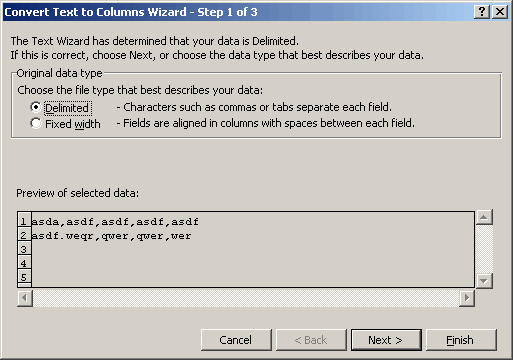
- Click on delimited in the resulting dialog box and then Next
- Check the box for comma in the next dialog box and then click
on Finish
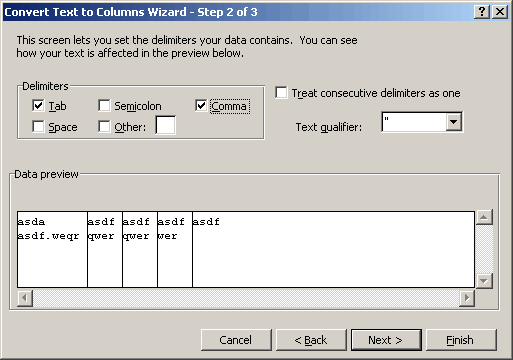
- Your data should now appear correctly parsed into columns.
Forcing IE to ask if file should be saved or opened
If you want to be prompted for a download location for the file type, follow these steps:
- Double-click My Computer.
- On the View menu, click Folder Options.
- On the File Types tab, click the appropriate file type in the Registered File Types box.
- Click Edit.
- Click to select the Confirm Open After Download check box.
- Click OK, and then click OK.
(Taken from http://support.microsoft.com/default.aspx?scid=kb;en-us;177976)